This is a development build of the website. Issues are to be expected, and should be reported on GitHub.
How I made the music video for “gaze upon the stars”
Published on
•
37 minute read
Heads up!
Like the last one, this article may also be a bit rough around the edges, perhaps even more so.
Again, any and all feedback is welcome!
Last time, I talked about how I created one of my best songs, “gaze
upon the stars”. Today, I’m at last here to discuss its music video.
If you’re wondering what took me so long this time, the hot weather here prevented me from doing too
much on my PC. It tends to turn into a space heater under load, and the space it’s heating happens
to be very small, so it quickly spirals out of control. I’ve also been having some sleep issues
thanks to loud neighbours. But without further ado, let’s finally dive into how the music video
was made!
The animation was created in Unreal Engine (version 5.7.4, to be exact),
which happens to be the same engine Home Paige uses. I had previously tried both Unity and Godot,
but neither of them really ended up working out. But that’s not to say Unreal doesn’t have its flaws
either. Not by a long shot, in fact…
Hey, just so you know, whenever I say UE or Unreal, I’m referring to Unreal Engine.
Tangent: Unreal Engine woes
Hey!
This section is not important for the rest of the article, so if you don’t care, just skip to the
next section here.
Still here? Alright, then let me take you on a bit of a detour to talk about some of the issues I’ve
experienced with Unreal.
Linuxn’t
Unreal Editor 5.7 is the first version to use Wayland on Linux by default, and it might just have
the worst Wayland support I’ve ever seen in the over 2 years I’ve been daily driving Linux. And
trust me, I’ve seen some stinkers. There’s
a post about it
on the Unreal Engine forums if you want to learn more.
To fix this, I first had to launch Unreal Engine with the SDL_VIDEODRIVER=x11 environment
variable, to force it to go back to X11 and run under Xwayland. That alone wasn’t enough though,
because it broke a bunch of other things instead. Thankfully I found a fix in
that same forum thread,
although it’s still far from perfect.
Since then, that forum post has been locked, saying the issues are fixed in UE 5.8. However, after
updating to UE 5.8.2, I can confirm that this is not in fact the case. While mouse interactions
seem to be improved (except sometimes when a notification pops up in the bottom), the viewport
navigation doesn’t work. As such, I still have to use the workarounds above. So close, yet so far
away…
Miscellaneous Instabilities
There have also been some other issues. For instance, every time I launch the project, the grass
just doesn’t exist, and I have to reopen the level to fix it.
This seems to have been patched in 5.8!
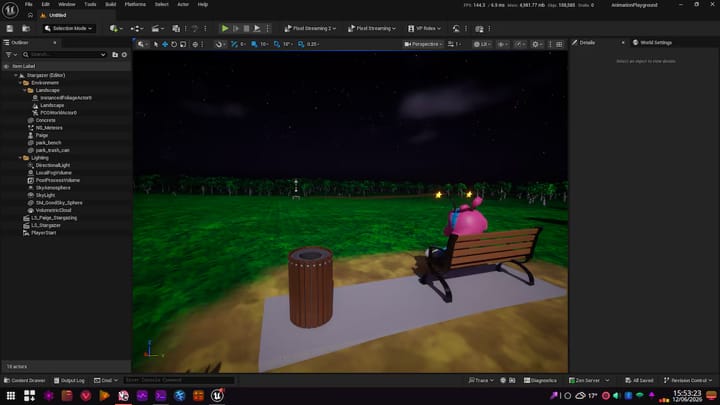
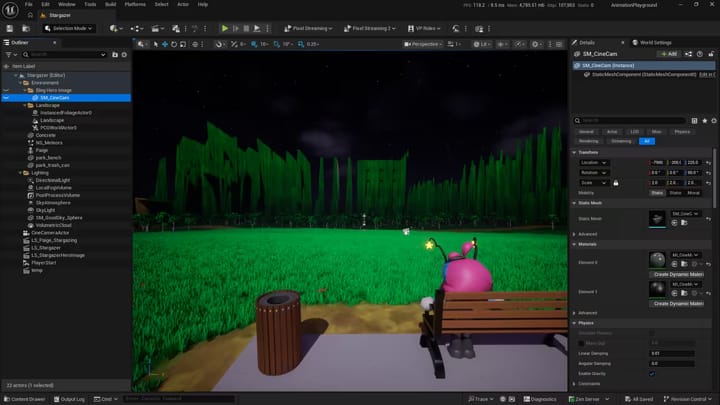
Or sometimes when I save certain things, the terrain in the distance just freaks out. I somehow
didn’t have a screenshot of that, so I reproduced it just for you!
I haven’t had this happen in 5.8 either, so perhaps this one is fixed too.
Unreal Engine has also crashed on me several times, most notably when switching from the cinematic
viewport to the normal one. In fact, it still does that in 5.8. Quite annoying when you’re working
on cinematic stuff like this, don’t you think?
Unexpected Blackout
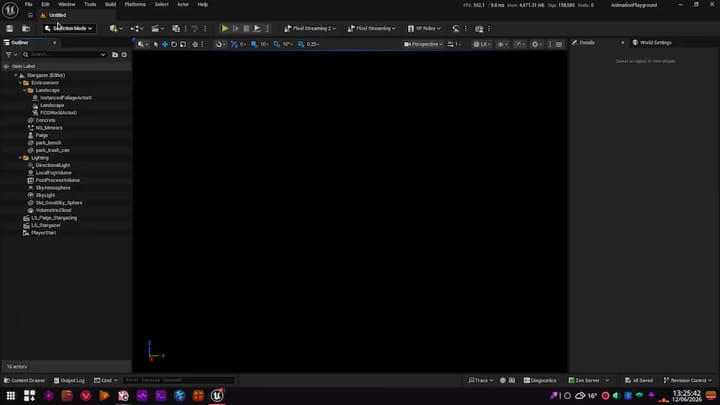
Finally, in the process of writing this article (dear god, that was like 3 months ago
already…), Unreal Editor decided it was no longer going to render the viewport
(specifically in Lit mode). That’s what inspired me to write this section in the first place,
although as it turns out, it may not have been Unreal’s fault.
I tried many things to resolve this, including:
Turning it off and back on again (man, usually that one does it…)
Re-downloading Unreal Editor
Re-enabling Wayland support
Upgrading to the UE 5.8 preview (5.8 was not released yet at that time). That one actually made it
much worse, as it either made the entire window black, or straight up crashed my GPU.
I then looked in the Discord server for my distro (Nobara), and found someone else who also started
running into this issue after an update on 14 May. Armed with the knowledge that it was likely a
driver or kernel issue, I switched to an experimental build of the Mesa driver, and lo and
behold, it worked!
I looked on the forums recently, and saw a lot of people having the same issues running Unreal
Engine 5.8 on Linux. Those posts further confirmed my theory that it was in fact an issue with
Mesa.
Ironically, the build it installed was still a month old (from 20 May, to be exact). That’s likely
because Nobara hadn’t been getting package updates for a while, since version 44 was in the works.
Now that said version is out, the stable driver works too.
And actually, I started getting severe graphical glitches in Unlit mode instead. In fact, they still
happened as recently as August 25, although now it seems to have gone away after upgrading to UE
5.8. Well, this is just a certified Linux moment…
Concluding this Tangent
As you can see, Unreal Engine does have its fair share of issues, even more so on Linux. A bit
unfortunate considering how good the Linux desktop is getting these days, although supporting it can
be quite a hassle at times. There were plenty more smaller issues, but they’re not really worth
mentioning here, and I need to stop complaining by now.
Despite all of these problems though, Unreal’s tools for creating content like this compensate for
that just enough for me to keep using it.
Chapter 2: The Music Video
In this article, I’ll go through some of the assets, materials, techniques and other stuff I used to
make the music video. Keep in mind this was my first time using Unreal, so there is a fair bit of
jank involved. That… isn’t exactly unusual for me, to be honest.
Should you be interested, I’ve once again made the project files for this music video (and any
future ones) freely available, this time on
GitLab, under the MIT licence. Note
that they have been updated to Unreal Engine 5.8.2.
Normally, I’d put stuff like this on GitHub (like what I did with this website), but they have a
hard limit on Git LFS
bandwidth,
which is just unacceptable for a project like this. GitLab doesn’t mention this anywhere, so
they’re likely a bit more lenient. Should the repository become unavailable for whatever reason
though, I’ll try to keep a backup version on my Nextcloud
share.
I also want to warn you that things may get rather technical in places. My apologies for that.
Hopefully you don’t mind too much. But with all of that aside, let’s go over how the music video was
made, shall we?
Gazing upon the Stars
Since the song is titled “gaze upon the stars”, obviously the sky needed some stars to gaze upon.
And the default sky you start with in UE5 doesn’t have any of them, which is unfortunate.
A lot of YouTube tutorials recommend dropping in the BP_Sky_Sphere blueprint, which is likely left
over from an older version of Unreal Engine. Sure, that one does have stars, but they’re not
animated. And that’s just lame. They do offer another solution, the Celestial Vault plugin, but
it said no to my lighting setup, so I couldn’t use it.
While writing this, I accidentally found another material that’s part of Unreal Engine, called
M_Procedural_Sky_Night. I’m not sure what the origin of it is exactly, but it does have animated
stars, although the effect is so subtle it might as well not be there. It also has its flaws, and it
wouldn’t have helped me with the constellations anyway, so I’m still happy that I went down this
rabbit hole.
I initially used a Fab asset called Good Sky to handle the sky, which did have clearly animated
stars. However, when I posted an
early version of the music video
in the Home Paige Discord server (because that’s what I do
now), people wanted more. They wanted shooting stars and constellations. And Good Sky wasn’t
going to cut it for that. So I ended up doing it myself, by making my own sky material.
The Path to Stars
Fun fact!
I used a very similar approach to create the animated starry background of this very website using
WebGL. The source code for that is available on
GitHub,
under the MPL-2.0 licence.
Can’t see said background? Then make sure the Immersive Mode and Backgroundpreferences are enabled.
Of course, in order to make a night sky, you need some stars. And because I wanted to make them
procedural, I used some noise for that. But noise works with a position, so I needed to get that
first. Good Sky did actually come in handy, as its skydome mesh comes with texture coordinates that
made this very easy.
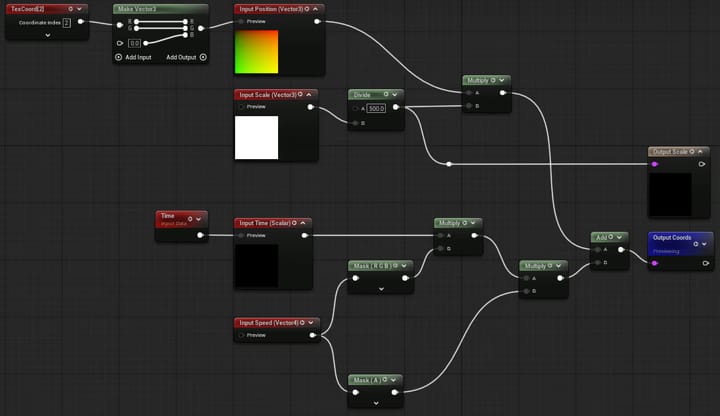
In order to get those coordinates scaled down and moving, I wrote this material function that I
called MF_NoiseCoords, so I could re-use it later:
Now feed it some parameters, and out comes a position that you can give to a noise function. Notice
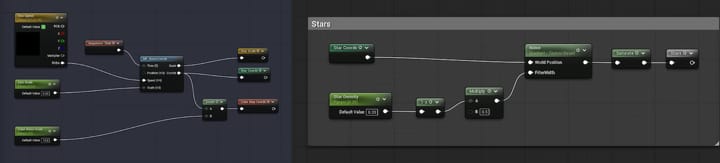
it also outputs the adjusted scale; this will come in handy later. But first, stars. Interestingly,
I found that Unreal Engine’s gradient noise gave me the best results:
Hey!
The Sequencer Time node you see in these graphs comes from another named reroute. I talk about
it later in the article. If you’re not planning to use the
Sequencer, just use the normal Time node.
Twinkle, Twinkle
Cool. Now we have moving stars. But here on Earth, stars don’t just appear to move, they also
twinkle. So how do we do that? Why, with more noise,
of course!
The graph is essentially the same as the above, just with different parameters. So instead of adding
another yet image (this article already has so many of them, as you’ll see later),
here’s a complete list of the things I changed for the twinkle noise:
Input material parameters:
Speed → -1, -0.6, 0.6, 0.125
Scale → 22
Density → 0.87
Noise parameters (click on the Noise node to change them):
Function → Simplex - Texture Based
Level Scale → 1.4
There’s also a 1-x node after the last Saturate node, just before the final output.
You then multiply the stars with this new noise, et voilà, twinkling stars! Okay, there’s a bit more
going on afterwards, but I’ll save that for the end of this section.
Colouring them in
Stars are also not just pure white. They can have a
whole range of temperatures, resulting in colours from orange to white to blue. It is pretty subtle
though, which is why people often just make stars white. Most of us simply don’t care all that much.
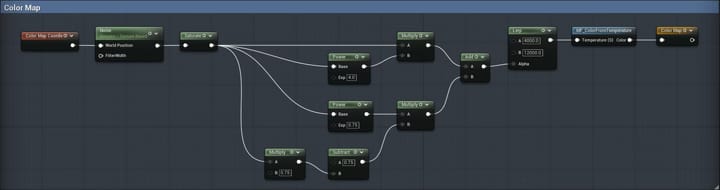
I do care, though. And that means it’s time to add another layer of noise in the mix. I definitely
didn’t use the most correct approach for this, but it’s good enough for government work:
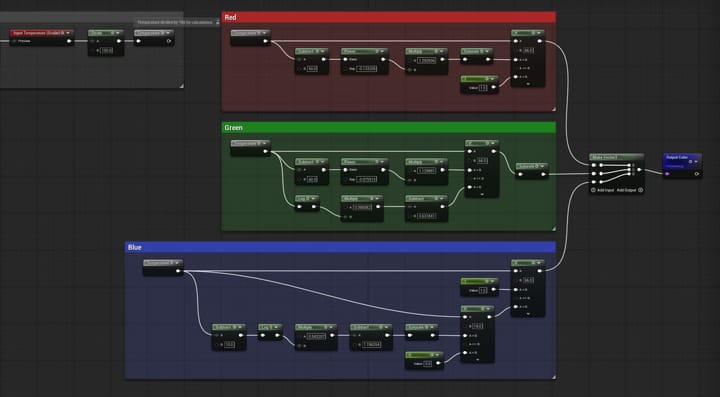
There is a lot of dodgy math involved here to try and get a more reasonable colour temperature
range.
And here’s the function for getting the colour from a temperature (MF_ColorFromTemperature), based
on
this algorithm from Tanner Helland.
It probably didn’t need to be this complex, but whatever.
Again, you multiply the final colour noise with the twinkling stars to make them coloured. Simple!
The end result is barely noticeable though, and in hindsight I could’ve saturated the colours a bit.
Oh, well. It’s still technically better than just plain white.
Paige in the Sky
I mentioned before that I got a request to add constellations to the sky. To be more specific, they
wanted ones depicting some of the Home Paige characters. Now that I have a custom sky material, it
shouldn’t be that hard, right…?
Well, there is a problem, and it’s that I’m not particularly good at drawing. And with the way I
implemented constellations, I’d have to draw them myself, since I don’t know anyone that could do it
for me.
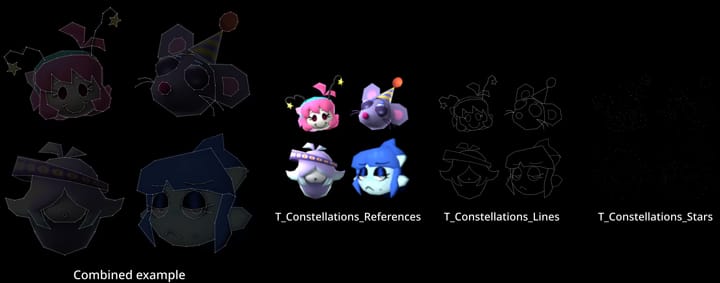
The images I ended up referencing were no more than 128 × 128 pixels in size, which is just abysmal
for trying to convert to dots and lines. I really wasn’t making this easy for
myself. I persevered though, and after a week or so I ended up with this. It’s pretty scuffed in
places, but thankfully that doesn’t really matter.
I just found out I forgot some things, like part of Sophy’s hair and possibly the stars for Oselle’s
mouth. Oops. Good thing you can’t really tell in the final music video…
In case you’re not familiar with Home Paige… what are you even doing? …Oh, my bad, I got
carried away there. What I wanted to say is that Sophy is the one in the bottom right corner, and
Oselle’s in the bottom left. I might as well go full circle while I’m at it, so in the top left we
have Paige, and finally in the top right corner is Oliver.
The Constellation Function
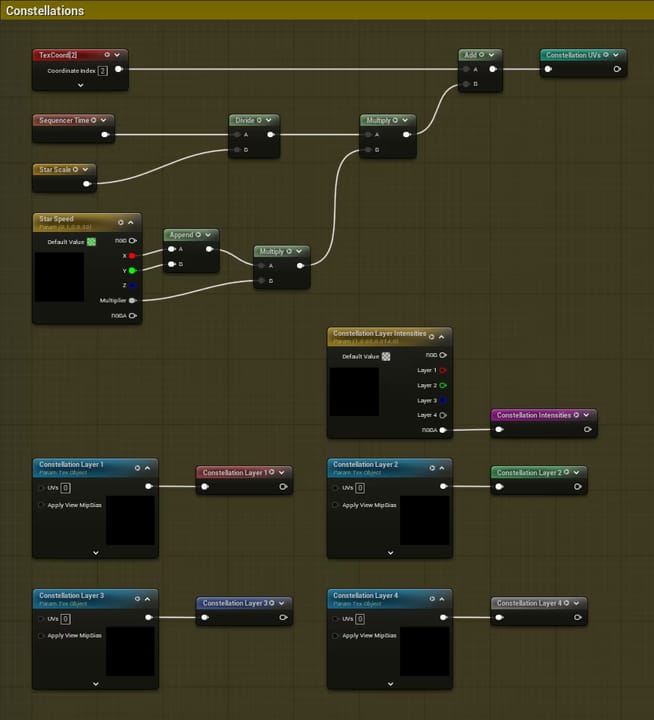
You may have noticed the constellation texture contains 4 of them, and that it’s actually split into
3 separate layers. That way I can customize them more easily inside of Unreal Engine. However, that
does mean it’ll take a bit more effort to get them into the sky.
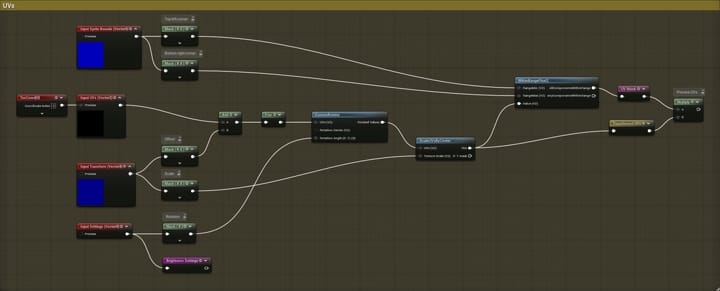
First, another function. Since the constellations only cover a small portion of the sky, we need to
start by manipulating the UVs properly, as well as creating a mask. Here’s how I did that:
All functions used here are built into Unreal Engine.
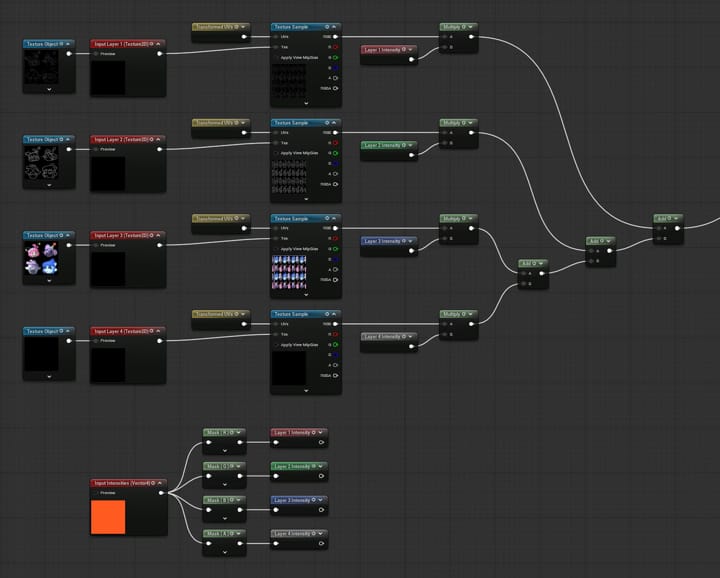
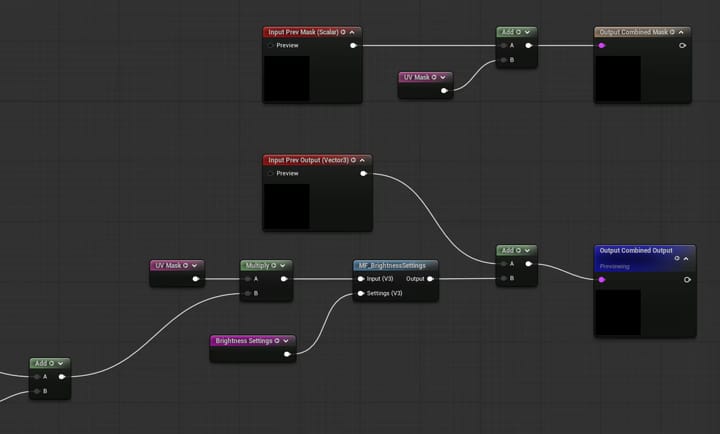
Next up, we sample the layer textures, change their intensities and combine them together. While
there are 4 layers here, we only have 3, so the last one is just a black texture. You can omit it
from the graph if you don’t need a 4th layer.
Finally, we mask away the portion we don’t need, adjust the brightness and contrast with a custom
function (more on that later), and accumulate it with the previous constellations. We also combine
the masks together; you’ll see why in just a moment.
Using Said Function
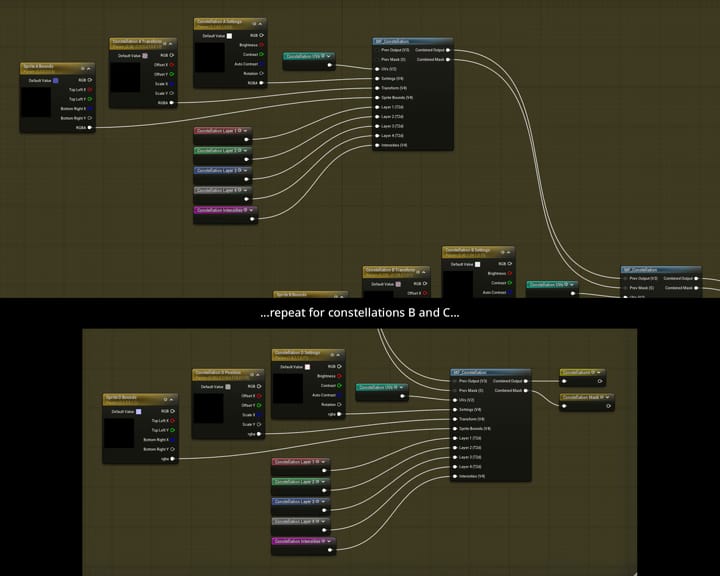
Now that we have our constellation function (appropriately called MF_Constellation), we just need
to put it to use. Let’s start off with the common inputs, most importantly the UVs.
Here’s where we need that scale output from the MF_NoiseCoords function; we can use it
together with the Star Speed parameter we previously defined for the stars, in order to match
their speed perfectly.
Lastly, we call the function with a bunch of parameters to get our combined constellation output.
This involves a lot of copy-pasting, so I won’t show the full graph here.
Completing the Material
Neat! We’ve got everything we need to finish off the sky material now. You may say we haven’t talked
about the shooting stars yet, but those aren’t actually part of the skybox, so be patient. And no,
there’s no moon either. It would’ve been offscreen anyway.
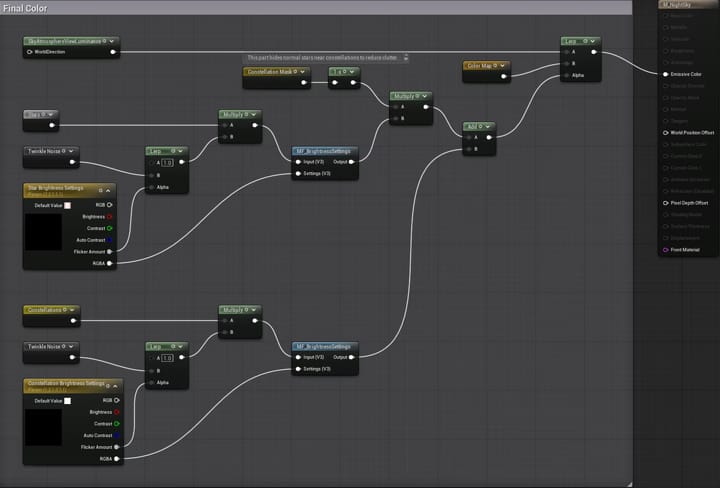
Here we take everything we’ve made up until now, adjust their brightness and combine them. We can
use the accumulated constellation mask to hide the stars near constellations, so that they’re a bit
more clear. We also bring in the atmosphere produced by the level’s SkyAtmosphere.
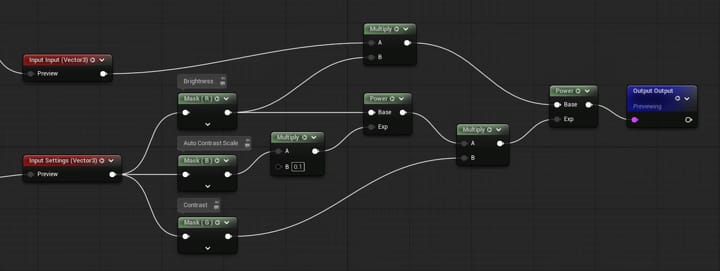
The brightness function (MF_BrightnessSettings) used here and in the constellation function is
pretty simple:
One more thing. In order to be able to use our new material as a skybox, we need to change 2
material properties:
Material/Shading Model → Unlit
Material/Advanced/Is Sky →
And that’s it! We finally have our procedurally generated starry sky material. There are just a few
things left to talk about…
Shooty Starry Particles
Remember, I was also asked to add shooting stars (aka
meteors). Putting these directly into the sky
material isn’t a good idea, so instead, let’s talk particles. In Unreal Engine, these are handled by
the
Niagara VFX system.
I’m not going to dive into the details here, as that would take way too long. This article is long
enough as is. Just know that I used the Radial Burst template as a starting off point, though it
was modified quite a bit. For instance, I disabled its sprite renderer, as it was causing ugly
artefacts in renders.
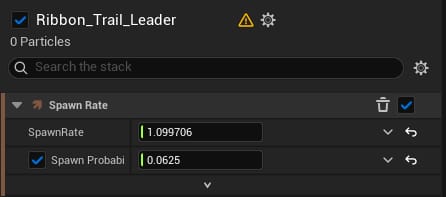
One neat thing I did is calculate the spawn rate specifically so that the meteors would appear more
or less in time with the beat:
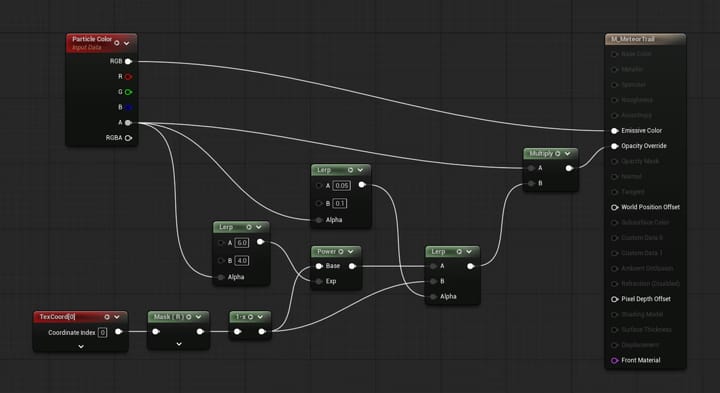
The spawn rate is perhaps a bit high, so just pretend it’s a meteor shower or something. I also
whipped up another material to get the ribbon trails to look how I want them to:
That’s all I wanted to say about the shooting stars. We just have one more topic related to the sky
left to discuss.
Puffs of Cloud
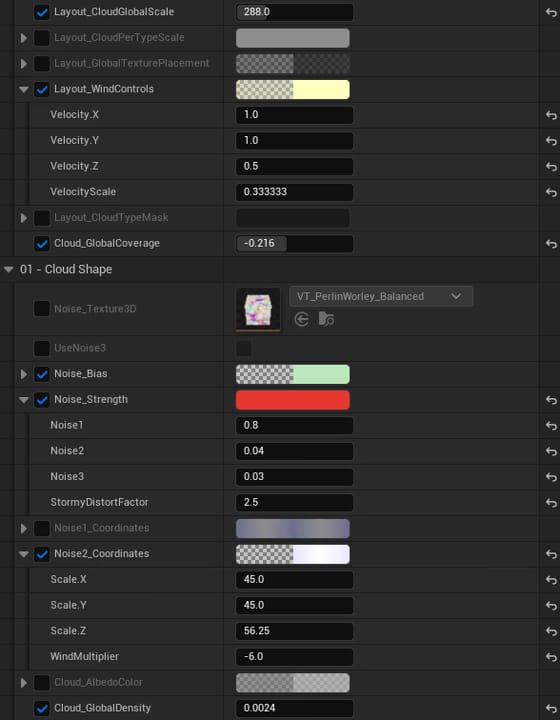
Naturally, the clouds aren’t part of the sky material either. In fact, they’re just Unreal Engine’s
default volumetric clouds. I did, however, tweak the settings to make them not as dense, as well as
much less detailed. Remember, this is Home Paige, not (insert realistic looking Unreal
Engine game here).
These clouds do have an effect on the overall lighting, which results in some of the images in this
article having different brightnesses than each other. You can also notice the brightness changing
in the music video. Without the clouds though, the shadows simply become too dark.
Oh yeah, the clouds are also tinted purple. This was actually done somewhere in the lighting
settings. But with that, our night sky is complete! We can finally move on to the next subject,
which is the scenery.
Making a Scene
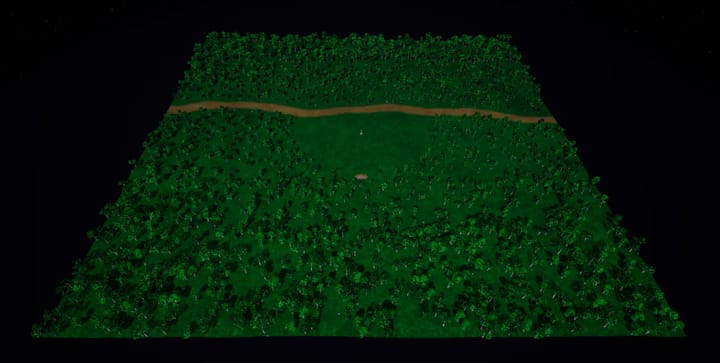
Having a night sky is nice, but it would be even nicer if there were a few more things to look at. I
started by spending quite a while trying to create a nature scene which I both liked well enough and
would not make our low poly Paige look too out of place. Eventually I settled on the
Cozy Nature pack on Fab, which
I then used to create this landscape:
I did end up tweaking a bunch of the materials from this addon, although whether I did a good job of
that is debatable.
Light it Up
No scene is complete without lighting. For this, I threw in something special by making the darker
tones a bit purply. That helps to give the lighting some character. The light level ended up a bit
darker than I would’ve liked though, which is unfortunately something that I tend to do quite often.
I am a dark mode user with sensitive eyes, after all.
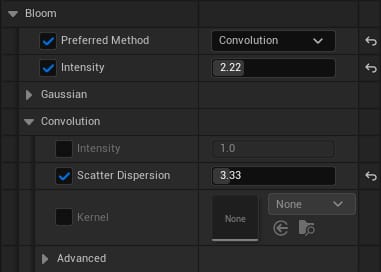
Of course, you can’t really have an Unreal Engine project in 2026 without post-processingpost-processing. The 2 main ones we’ve
got here are bloom…
…and a touch of extra vignette. Nothing too fancy.
Oh, technically lens flares were also enabled, but they were turned down so much they might as well
have not been there. Not like they would’ve fit in all that well…
Foreground Fill-In
All of that is cool and all, but where is Paige supposed to sit? On the ground? Well, funny you say
that. I originally wanted Paige to lay down on a picnic towel, but my lacklustre animation skills
couldn’t find a good pose for her. So instead… park bench.
If you thought my animation skills were lacklustre, you haven’t seen my 3D modelling skills. Or more
precisely, my total lack thereof. As such, I had to resort to the next best thing: a free Sketchfab
model1.
I also added a recycling bin on the other side, also from Sketchfab2. Why, you may ask?
A park needs to have a place to deposit your rubbish into, and…
…you know… Recycling Bin? The place that Home Paige is set in? I can make references too,
you know.
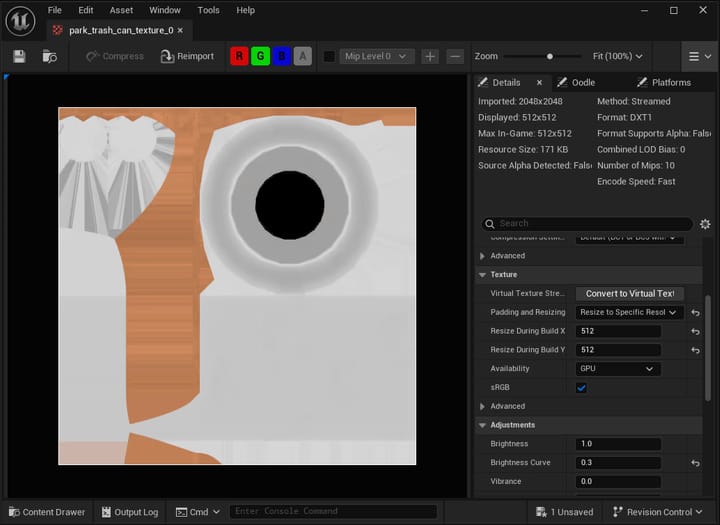
The one I picked looked very out of place, though. One of the things I did is making its colour and
normal map 4 times smaller, which lowers the detail quite a bit. The colours were also way too
dark, but thankfully, Unreal Engine’s got our back. We can simply adjust the texture’s brightness
curve, and that makes it look better. I also tweaked the material settings slightly.
Honestly, I could’ve gone a bit further than this, because it still looks a bit too detailed and
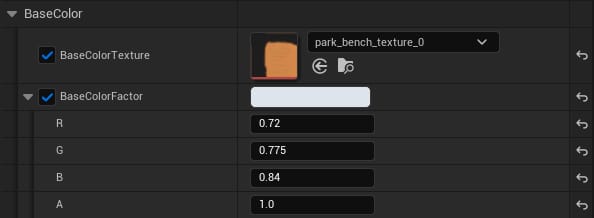
dark. But let’s move on to the park bench, which was still looking rather bright in comparison. I
adjusted the bench’s material colour to match them a bit better:
And the end result is… fine. Nothing to write home about. I just wanted something serviceable to
accompany the song I created, so it’s not a big deal.
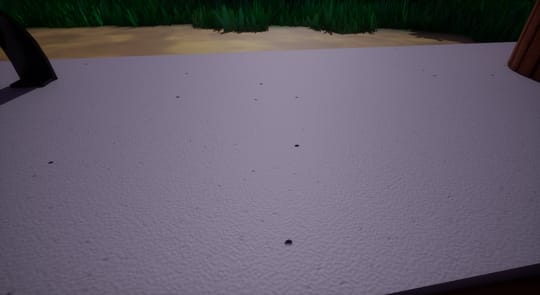
A Slab of Concrete…ish
Because the terrain isn’t exactly flat, trying to place objects on it would have them clip into the
ground. And that’s no good. To resolve this, I added a grey slab. That on its own is boring however,
so let’s construct it out of concrete instead.
For some reason, I thought it was a good idea to build my own procedurally generated concrete-like
material. Was that really necessary? Maybe not, but it did make me learn how to use Unreal’s
material editor, which in turn helped me create the custom sky.
Yes, I did in fact make this concrete material before the sky. The more you know.
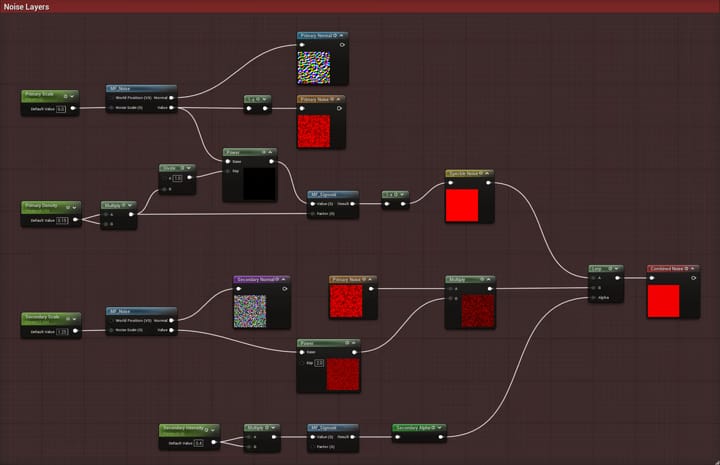
Stack the Layers
We start off with – you guessed it! – more noise. There are a few layers here, so let’s go
over each of them one by one.
We start off with a course, primary noise layer.
That layer is then exponentiated a ton and then inverted, in order to turn it into a few
occasional speckles.
Then we have a finer secondary noise layer for some extra detail.
Finally, that gets multiplied with the primary noise to break it up a bit, and is then blended
with the speckles to get our final, combined noise layer.
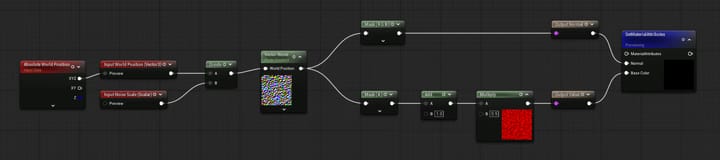
There are 2 more material functions at play here. The first (MF_Noise) is a simple helper function
to make some noise:
And the second (MF_Sigmoid) is a crude little
sigmoid function; a function that gets closer to 1
as the input increases, but never actually reaches it.
Technically it should do the same for negative numbers but approaching -1 instead, but I just
skipped it since there are no negative numbers to be seen here. If there were, something must have
gone seriously wrong.
The factor defaults to 1 if that input is disconnected. By the way, to properly handle
negative numbers, you should just be able to put an Abs node between the input value and
the Add node.
Materialization
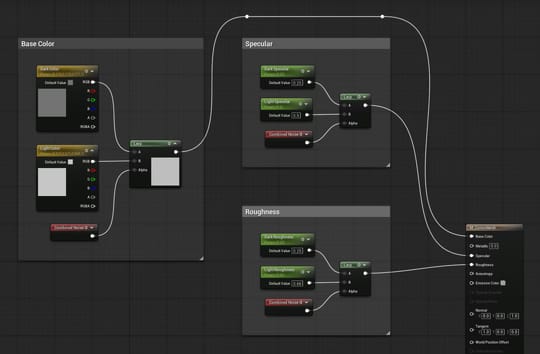
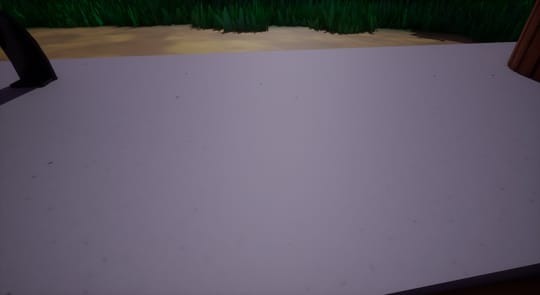
Now it’s just a matter of turning that noise into a decent-looking material. If we use our combined
noise layer to blend between some material values, it’s already starting to look like something:
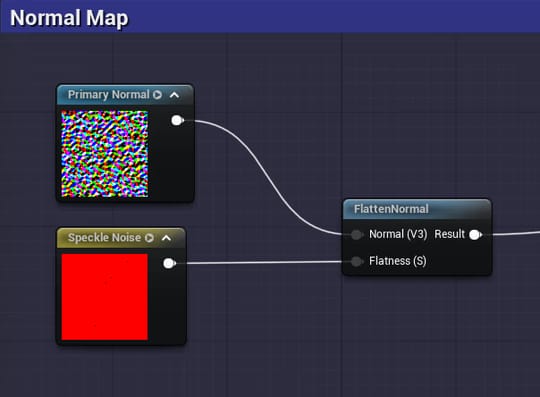
But we can do better than that. You see, the noise function we’ve been using also puts out 3D
vectors that are well suited for normal maps. We can take the vectors from our primary noise
layer, and only use them where there are speckles using the built-in FlattenNormal function.
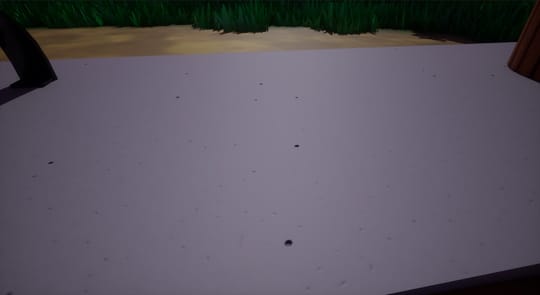
If we plug that into the material’s Normal input, those dark spots will get a pseudo-3D effect,
making them more pronounced:
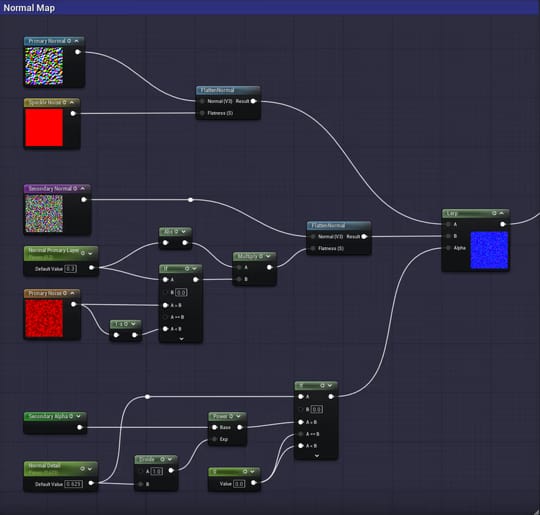
Perhaps it’s still looking on the plain side though. No worries, we have more noise where that came
from. With this, we can add a bit of texture to it:
Hey, that’s not so bad. There’s definitely still room for improvement, but I can work with this. And
we’ve always got loads of parameters to tweak, too.
But where’s Paige?
You’re saying we made it this far into the article, and we haven’t even discussed our main
protagonist here (apart from the constellations, but that doesn’t count)? That’s just
unacceptable. Let’s fix that.
I want to preface this by saying I almost certainly used a completely wrong approach to get her into
Unreal Engine, because as you remember, Home Paige is already an Unreal Engine game. But it should
be obvious by now that we don’t really do things the correct way here.
Importing the Model
Alright, let’s talk about what I did. I started with
specifically this version
of a Blender rig I found in the Home Paige Discord server. Because
it was really meant to be used in Blender, it has lots of flaws that made this job much harder than
it likely needed to be.
This is the same rig I used in my old Unity project. And yes, I’m aware there’s a newer version of
the rig, but that one was somehow even harder to work with, so I went back to this one.
The best results I got for importing it into Unreal Engine was by exporting a .glb file from
Blender. However, if I recall correctly, it still had a bunch of material issues that needed
correcting. Thankfully that didn’t take all too long, mainly since I had an already working version
in Unity that I could reference.
I also made some tweaks to the star material, so that they glow slightly orange. It works quite well
with the bloom, I’d say.
Rigging it Up
Because I have absolutely no clue on how to use Blender, I wanted to create a rig inside of Unreal
Engine, so I could use that to animate her instead. To be honest, I could’ve just learned a bit of
Blender to create the animation there instead, especially because this Unreal Engine rig likes to
break sometimes.
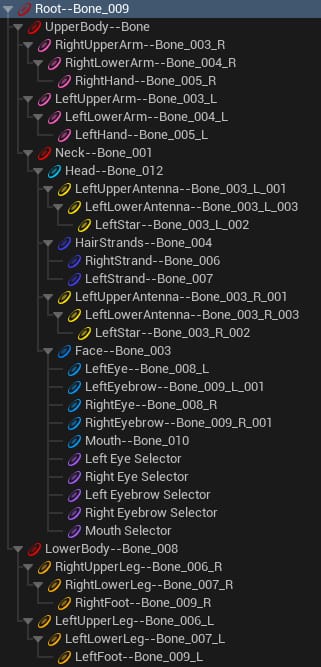
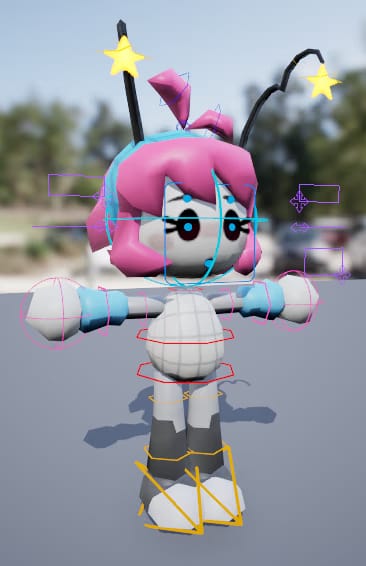
Anyway, I started by creating a control rig, with controls for every bone that actually has a
meaningful effect:
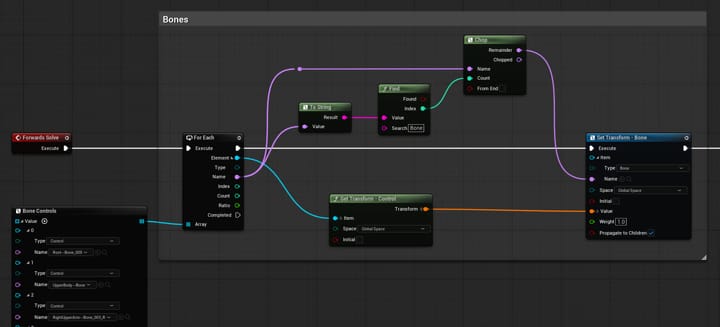
I then selected every control (except for the purple face selector ones, we’ll get there when
we get there) and dragged them into the Forwards Solve graph, creating an item array.
You’ll have undoubtedly noticed that each control’s name specifically ends with -- and a bone
name. The rig I used also had generic names for them, which made this naming process quite tedious.
But now I can use those carefully crafted control names to retrieve the correct bone for each
control in the item array, and transform that bone accordingly:
This is a bit of a cursed approach, but it mostly works. Now we can start animating Paige inside
Unreal Engine, with the same technology used to create the music video itself:
the Sequencer!
Simply create an actor track for Paige, and add the newly created control rig to that track.
For the music video, I created a very simple sitting loop. As I stated before, animating is not one
of my strong suits, and I just wanted something serviceable. If you want to see Paige animations
that are actually good, I’d strongly recommend
checking out what Minimin is cooking.
It’s Sequencer Time!
We’ve now discussed just about everything you can see, so let’s get to animating the music video.
Unreal Engine conveniently has some
really powerful tools
dedicated to stuff like this, which is what led me to try it out in the first place.
Camera-nimation
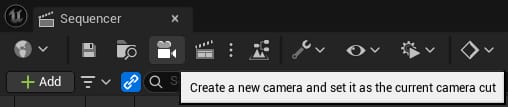
If we want to make a video, we need a camera. Just like real life. Unlike real life however, in
Unreal Engine, we can materialize a camera out of thin air with the press of a button. Meanwhile, us
mere mortals have to spend our hard-earned money on one. Although these days we’re just carrying
around smartphones in our pockets that happen to have decent cameras…
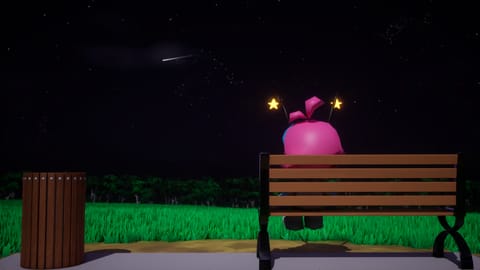
I made it so that this camera would very slowly move and rotate over time. So slowly, in fact, that
it probably took you a while to notice it was even moving. And if you didn’t notice at all, try
scrubbing through the video. That should make it obvious.
One cool trick we can do with this new camera is animating the exposure compensation to create a
fade effect, like so:
Make sure to use a curve like the one shown here, especially for longer fades. Otherwise, it’ll
stay dark for too long, which doesn’t feel natural.
Doing it this way will make the darker parts of the image fade out faster, while bright objects
(like Paige’s star antennae ) will remain visible
for longer. Just like a real camera!
Staying in Sync
Because we’re making a music video, it would be nice if we could synchronize things to the
Sequencer, to better line things up with the music. That’s going to take some more work, though.
Avoiding Audio Anomalies
The Sequencer allows us to drag any imported audio file directly into it. That’s quite neat, however
one problem I ran into is that the audio would de-sync more and more while playing. Not exactly
ideal when you’re trying to time stuff to the beat.
You can set the Sequencer’s clock source to Audio to try and combat this:
And while this does fix the de-syncing, for some reason, it makes the audio crackly instead.
Thankfully I found
a solution to this
on the forums, namely the console command Sequencer.Audio.UseAudioClockForAudioDesync
1. Combining this with the audio clock makes it behave pretty much perfectly for
audio-sensitive workflows like this.
Normally, if you want a material to evolve over time, you would use the appropriately named Time
node, which just outputs the world time in seconds. However, I wanted the sky to move in sync with
the Sequencer, so that I could make all constellations show up properly in the music video.
I tried looking up how to do this, but the only thing I found back then was that you had to use
what’s called a material parameter collection to animate materials. Now, that may have been the
case back in the day, but while researching a similar topic in late August, I accidentally found out
that
you CAN animate material parameters.
However, I didn’t know this at the time, and in fact, using a material parameter collection has one
big benefit: you’re able to re-use it across multiple materials. As such, it is likely still the
best approach for this use case.
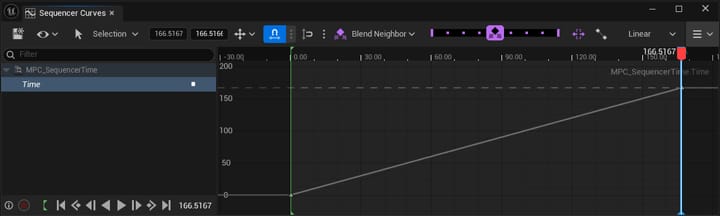
So, what I did is I created one of these collections, containing nothing more than a scalar Time
parameter. It’s so simple I don’t even need to show it to you. Then I added it to the Sequencer and
made it so that it linearly increases by 1 every second. That way, it would effectively hold the
sequence’s current time in seconds.
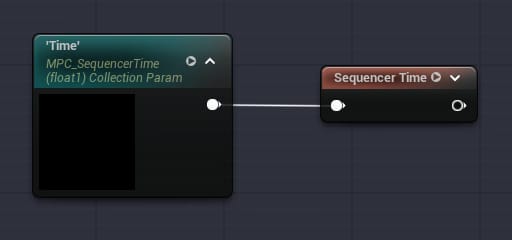
Now it’s just a matter of referencing this in any materials we want to stay in sync with the
sequence, and using it in place of the Time node. This is where that Sequencer Time node
originates from in previous graphs.
The Remainders
Particle systems, like the one that handles our shooting stars, also need a bit of tweaking to get
them synchronized with the Sequencer.
The Unreal Engine documentation
fortunately already has this case covered, but to summarize it essentially boils down to making the
emitter deterministic and adding a lifecycle track for it in the sequence.
Something that I haven’t been able to synchronize yet though are the clouds, which is annoying,
because they affect the overall lighting. I’ll have to try to figure that out later. Or I could just
stop using the default volumetric clouds.
Exporting the Video
Phew. We finally have our music video. Now we just need to render it. Surely it won’t be that bad,
right…? *sighs* Yeah, no.
Rendering it
I used Unreal’s
Movie Render Queue
for this. It has a nice feature where we can set the resolution and framerate to whatever we want.
That allows us to do test renders at a lower resolution and framerate to speed them up
significantly, and then switch to a higher one for our final render (in this case, 3840 × 2160 at 60
fps, aka 4K60).
However, we also have to choose an export format. While it shows an option to export an H.264 video,
on Linux, this option simply errors out saying it is not supported. And in fact, this applies to all
the video export modes. Once again, us Linux users are being left in the dark.
Not all hope is lost, though. We can still export an image sequence. For the first test renders I
did, I used a simple .png sequence. But even at a reduced resolution and framerate, it was still
taking up tens of gigabytes of disk space, which is not ideal. There is an option to use a .jpg
sequence, but I didn’t trust it at the time because it’s lossy.
Instead, I switched to an .exr sequence with DWAB compression. While this is also lossy, you
honestly can’t even tell. That still ended up with a size of about 20 gigabytes, but it’s definitely
less than what a PNG sequence would’ve been at 4K 60fps. And we also get some… advantages?
You see, these EXR images store 16-bit linear colours. That’s fine for professional work,
especially because you get much more brightness detail than the 8-bit images from PNG/JPG sequences,
even with the lossy compression. They may even be suitable for HDR purposes, but I wasn’t able to
figure that out.
One big downside though is that if you try to use them directly, the end result will be extremely
dark. You have to tonemap them yourself. It also takes a lot of time for the CPU to decode these
images, slowing down the encoding process. Speaking of which…
Encoding it
It’s time to turn this image sequence into a proper video. Unreal Engine does have an option to use
a
command-line encoder,
but I believe I couldn’t get hardware acceleration working this way. Instead, I just let it export
the image sequence, and then executed FFmpeg directly:
I’m guessing most of you aren’t familiar with FFmpeg, and you’re probably looking at this command,
going: “…huh? What does that do?” So, let’s dissect this one step at a time.
-hide_banner hides the incredibly big banner that it likes to output every time, and -y
always overwrites the output file if it already exists, instead of asking you first. These are
just for convenience, so don’t worry about it.
-hwaccel vaapi -hwaccel_output_format vaapi -vaapi_device /dev/dri/renderD128 tells FFmpeg that
we want to use VAAPI for hardware acceleration. This is what worked for me on Linux with my AMD
GPU. For more information, refer to the FFmpeg wiki.
-framerate 60 specifies the input framerate. This is required when you’re dealing with an image
sequence.
-i './stargazer-music-video_final/%04d.exr' passes said image sequence as an input, using a
pattern.
-i 'f78 - gaze upon the stars.flac' then specifies the original song as an input. While you can
export audio from Unreal Engine, it is not necessary, since the only audio track is the song
itself. It would introduce another layer of instability, too. (If you’re wondering,
this is a 48 kHz, 24-bit file.)
-c:a copy tells FFmpeg to not encode the audio, and just add it to the video container
directly. FLAC audio is ideal for music videos anyway, since it’s lossless. That way there will
be slightly less quality loss.
-c:v hevc_vaapi -b:v 50M -tier 1 sets the video codec to HEVC (H.265), with the High tier, a
target bitrate of 50Mbps (which was overkill, it needed less than 20Mbps), and using the VAAPI
hardware acceleration from earlier. While CRF would be better, it’s unfortunately not
supported by VAAPI. And yes, my GPU does support AV1, but apparently it gives worse quality or
something? I don’t remember. It’s been almost 4 months, you know.
-vf 'zscale=t=iec61966-2-1,format=nv12,hwupload' specifies some video filters:
zscale=t=iec61966-2-1 is the important one. It’s what maps the linear values from our
EXR sequence to sRGB, which looked the most accurate to me, although it’s actually still a bit
off.
format=nv12,hwupload is some more VAAPI hardware acceleration stuff. Something about how to
upload the frames to the GPU, I believe.
Now we’re just left with 'stargazer-v2_final.mkv', which is the output path. Here we’re using
an MKV (Matroska) container, but that shouldn’t really matter. MP4 is probably fine, too.
You can see I used hardware acceleration for this. While that might be a bit worse for quality,
YouTube is going to compress it so much that it’s not too big of a deal. Doing this also takes a lot
of load off the CPU, which was already at 100% usage the entire time from just decoding those EXR
images. I don’t even want to imagine what encoding a 4K60 video on top of that would be like.
And at last, we have a video file! Which, by the way, is about 50 times smaller than that image
sequence, coming in at just 400 megabytes. And that includes the FLAC audio. Now we just upload it
to YouTube, and…
…as it turns out, we’ve got a bit of a problem. You see, YouTube uses the BT.709 colour space, and
when it got those sRGB colours, it decided to mess with them. This resulted in the video looking
darker than it’s supposed to. It’s most noticeable in parts of the image that were already dark to
begin with.
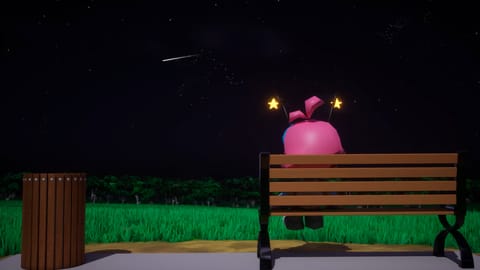
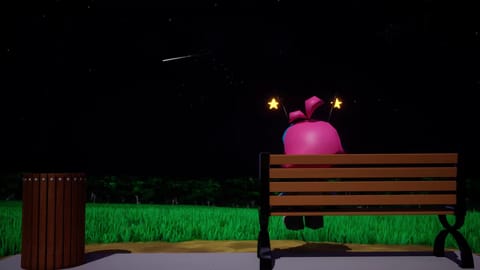
PNG exported from Unreal Engine (likely has different lighting, and don’t ask me why the camera
angle changed…)
Screenshot of local video file
Screenshot from YouTube
Thankfully we can just barely call that a feature. It is nighttime, after all. This is definitely
not ideal though, and I’ll need to resolve this by the time I finish the next music video. I will
probably just go back to a PNG sequence, or maybe even a JPEG one. The quality loss may not have
been so bad after all.
Bonus: A Heroic Image
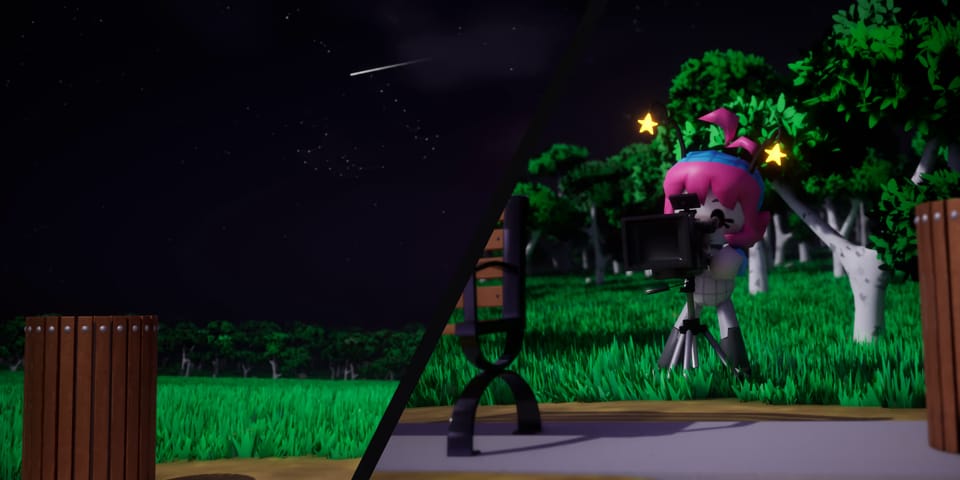
Before we wrap up, I wanted to say a few things about this very article’s hero image. That’s
the big image at the top, if you didn’t know.
Facilitating Facial Animations
In the music video, we just stare at Paige’s back the entire time. However, the hero image has her
face in it, and that default face wouldn’t be sufficient. So, I had to implement facial animations.
I followed
this tutorial
for animating materials using a control rig. I won’t go into detail here, so watch that tutorial if
you want to learn more. This approach calls for very specific material parameters, so I had to
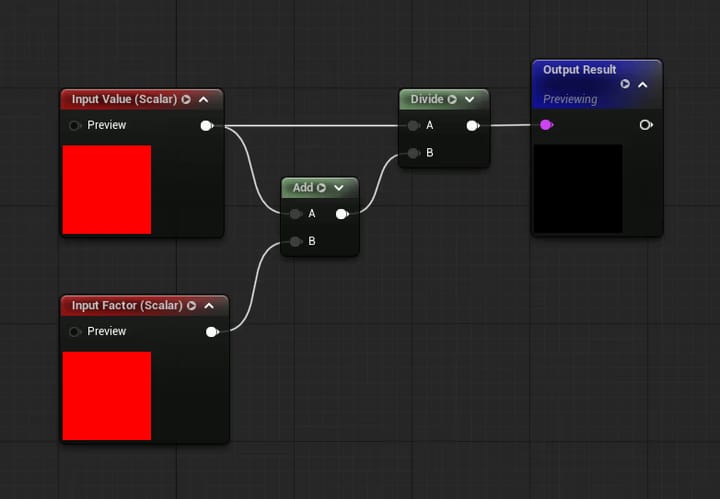
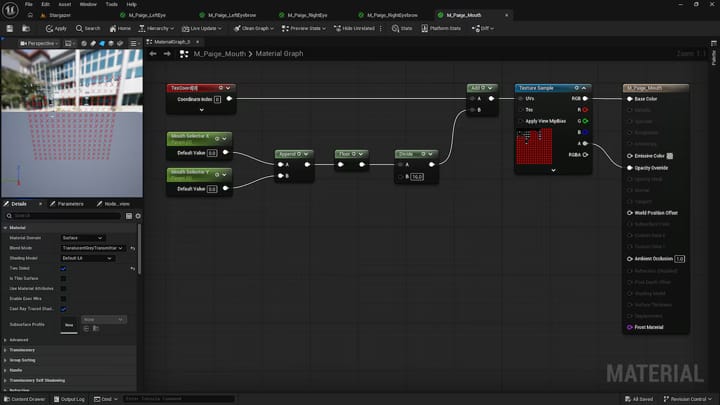
create my own material for each facial feature, all with unique parameter names. Thankfully it’s not
that difficult. Here’s what one of them looks like:
Keep in mind each spritesheet for Paige’s facial features has a different number of sprites in them.
The B value of the Divide node needs to be changed depending on how many of them it has.
Here it’s 16 because the mouth texture has 16 × 16 sprites (even though most of them are invalid),
but for the eyes it needs to be 8, and 4 for the eyebrows.
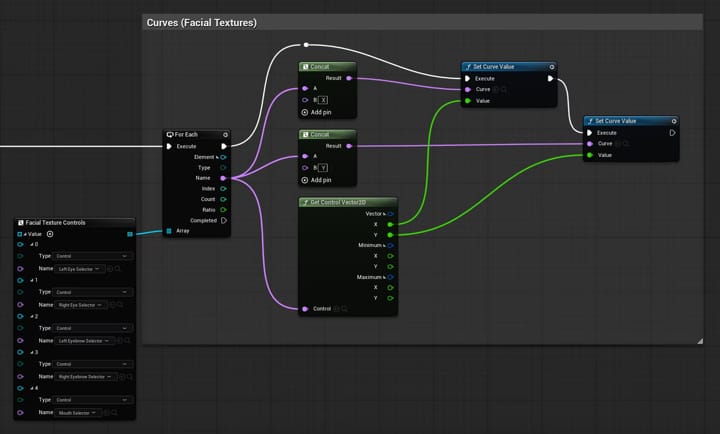
I might as well show the control rig graph for the facial features while I’m at it. It basically
just adds " X" or " Y" to the control name, and adjusts the curve with that name (and therefore
material parameter).
Composing the Image
I again used the Sequencer to create it, since it lets me tweak everything in the scene while
(poorly) posing Paige at the same time, without messing up the base map.
For this image, I brought in 2 additional models: the Unreal Engine cinematic camera model, as well
as a tripod, again from Sketchfab3. Because Paige cannot hold a camera that
heavy. The scaling is most likely a bit off, but who cares, it’s just for a silly little blog
post cover image.
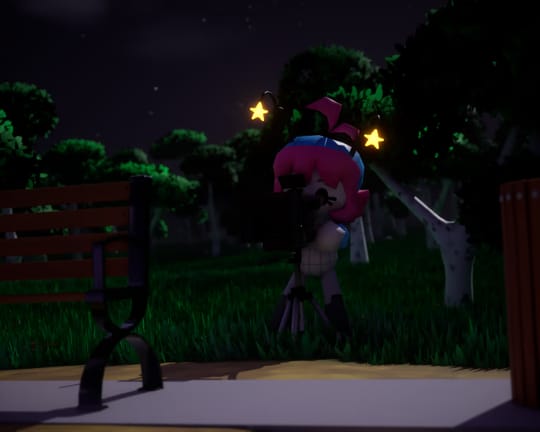
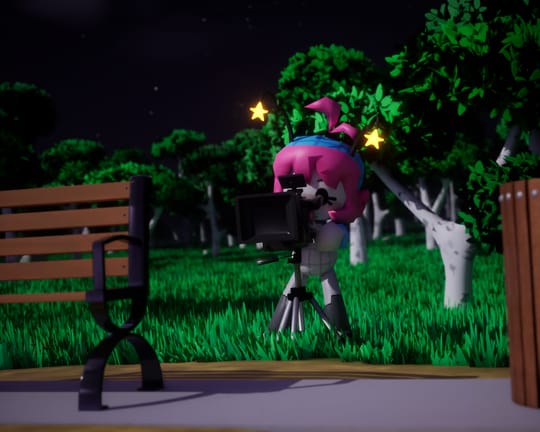
Something I also did was cheat with the lighting, as the settings from the music video made things
look very bad from this particular angle:
Old lighting
New lighting
I noticed there were some shadow artefacts though, especially with Paige’s hair. It’s almost
unnoticeable at this resolution, but trust me, it’s there, and my perfectionist self couldn’t
resist. This resulted in me falling in a bit of a rabbit hole trying to find the right shadow
settings.
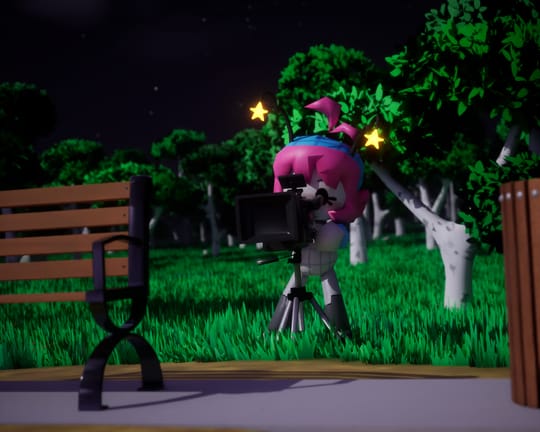
The first thing I tried that made a difference was ray traced shadows. My GPU surprisingly had no
problem with that, but unfortunately, the tripod did. Again, it’s hard to tell at this resolution,
but it’s there.
Before
With ray traced shadows
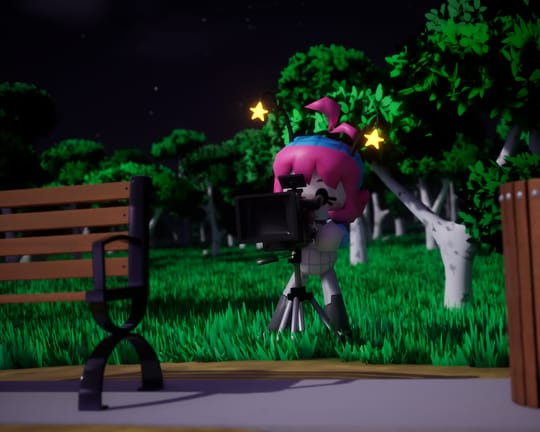
Another thing I tried was disabling virtual shadow maps. It’s supposed to be some fancy
technology to make shadows look crisper (i.e. more like the ray traced shadows
above), but it was in fact what was causing the artefacts. Disabling it did of course make
the shadows a lot smoother, but that honestly has such a vibe, so I kept it. Take a look:
With virtual shadow maps
The final image, without them
The last thing I want to mention is the depth of field effect. I actually wanted it to be even more
present, but apparently, if you go too far, we’re back to artefact land. This was about the best I
could do.
Exporting it
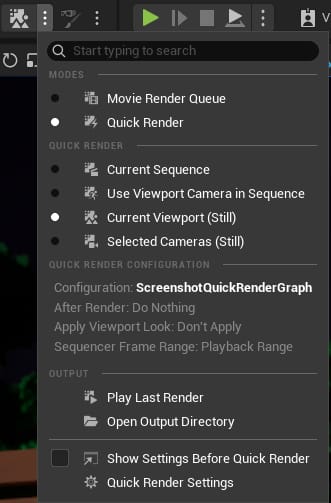
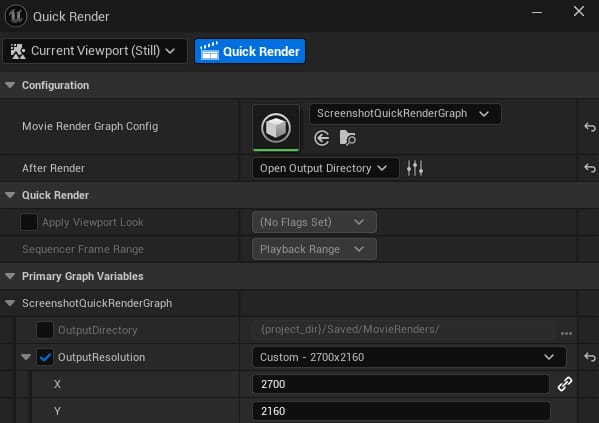
Now that everything is set up, we can simply use the Quick Render feature to export an image.
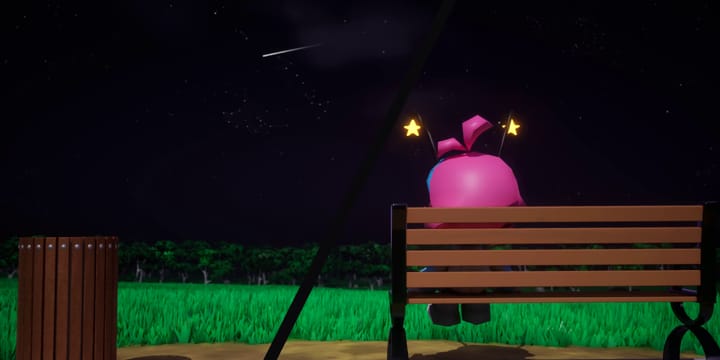
Going into the settings lets us tweak the image resolution. I went with 2700 × 2160 here; going any
wider would be redundant with the way this hero image is composed.
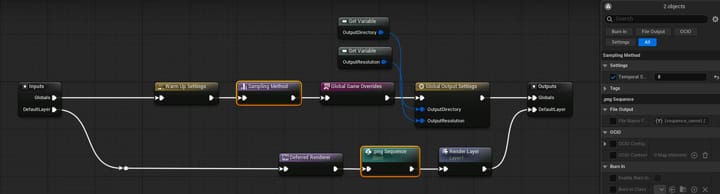
I also used a custom render graph. It’s essentially the same as the default graph, but with 2
changes. First is that it exports a .png instead of a .jpg. Not that it’s needed, since the
quality loss is really only noticeable if you’re pixel peeping (which means zooming in and
staring closely at the pixels).
Second is that there’s an extra Sampling Method node to increase the temporal samples. This
helps to reduce most of the remaining artefacts, mainly around the grass, since its wind effect
rudely keeps going through the warm-up frames. Again, perfectionist here. This does make it take
longer to export, but because it’s just a single frame, it’s not a big deal.
The changed nodes have been highlighted in yellow.
The Finishing Touches
After exporting the image from Unreal Engine, I brought it into Inkscape to
create the final hero image. Similar to part 1 of the blog post, it’s
split into 2 sections: the left half is a screenshot from the music video, while the right half is
the brand-new image we just created. And to give it a bit of flavour, rather than just being a
straight cut, it’s diagonal instead.
Fun fact!
If you combine the left half from this part’s hero image with the right half of part 1’s, you get
the full music video shot I used:
I had to go edit part 1’s hero image just for that, because the screenshot used to be offset…
Conclusion
Wow. That surely must’ve been… a lot to take in for you. I don’t really know what to say any more,
other than thank you for persevering through that over half an hour of yapping. See you next time!
Which better not be in 4 months again…
Below are the obligatory attributions for the Sketchfab models I used. Hopefully the models don’t
disappear like the last time I used a model from there.


Comments
Discussion title: Blog post: Stargazer lo-fi cover part 2 (music video)